
How to Transfer Files Between Phone and Computer Without USB Cable
You're at a coffee shop, working on your Windows laptop. You just shot a video on your iPhone that you need to edit. You reach into your bag and realize — no USB cable. Or maybe you do have a cable, but it's USB-C to USB-C and your laptop only has USB-A ports.
You could email it. Wait, the video is 800MB. Gmail caps at 25MB.
Scenarios like this happen every day. And they're not limited to iPhone-and-Windows. Android users with a MacBook face the same problem. If you've ever used Linux, connecting any phone is an adventure in itself.
(Transferring files between two phones? We covered that in our iPhone to Android transfer guide.)
The good news: you don't need a cable to move files between a phone and computer. Some methods are faster than you'd expect — and a tool like TransP2P makes cross-platform transfers surprisingly simple.
Why Phone-to-Computer Transfer Is Still a Mess
Most people don't think about file transfer until they need it. Then they discover:
- iPhone with Windows PC: Apple and Microsoft don't play nice. AirDrop doesn't exist on Windows. You need iTunes — yes, iTunes, on Windows, in the current year.
- Android with Mac: Android phones use MTP (Media Transfer Protocol) for USB file transfer. macOS doesn't natively support MTP. You need a third-party tool like Android File Transfer, which hasn't been updated in years and crashes constantly.
- iPhone with Linux: Good luck. Apple provides zero Linux support.
- Android with Linux: Better, but MTP on Linux can be flaky depending on your distribution and file manager.
The common thread: if the two devices run different operating systems, it's rarely plug-and-play.
Let's walk through every method, including one you probably haven't tried.
Method 1: USB Cable — The "Obvious" Answer That Often Fails
Using a cable is still what most people try first. Here's what that looks like in practice:
iPhone → Windows PC
- Plug iPhone into PC with a Lightning or USB-C cable.
- If it's the first time, Windows installs drivers. Sometimes it works. Sometimes it doesn't.
- Open File Explorer. Your iPhone might show up under "This PC." It might not.
- If you want to transfer anything other than photos (music, documents, app data), you need iTunes.
- Install iTunes. Wait for it to load. Navigate its interface. Transfer files.
The Windows version of iTunes is slow, resource-heavy, and feels like it was designed in 2010. It still receives security updates but the experience hasn't meaningfully improved.
Android → Mac
- Plug Android phone into Mac via USB.
- Nothing happens. macOS doesn't recognize MTP natively.
- Download "Android File Transfer" from Google's website.
- The app might connect. It might also hang, crash, or show "No Android device found" five times before working.
- When it does work, the interface is barebones and transfers can stall on large files.
Android → Windows
This is the least painful combination. Windows supports MTP natively. Plug in, select "File Transfer" on the phone, and you can drag and drop files. But even this isn't perfect — MTP sometimes fails to show new files, especially photos, until you restart the phone or toggle USB modes.
The Bottom Line on Cables
Cables do work. But you need:
- The right cable (Lightning vs USB-C vs micro-USB vs USB-A vs USB-C on the other end)
- The right drivers installed
- A bit of patience when things don't connect on the first try
And you need to have the cable with you.
Method 2: Cloud Storage — Upload, Wait, Download
This is what most people default to when the cable doesn't work.
How it works: Upload files from your phone to Google Drive / iCloud / Dropbox / OneDrive → open the cloud service on your computer → download the files.
The problems:
- Upload speed. You're limited by your phone's upload bandwidth, not download. On a typical home connection, uploading 1GB can take 5-10 minutes.
- Storage limits. Free Google Drive gives 15GB. Free iCloud gives 5GB. If your phone photos are already backing up to iCloud, you may not have room for a one-time transfer.
- Account dependency. The computer needs to be logged into the same cloud account, or you need to generate and send a share link.
- Privacy. Your file gets stored on a corporate server, at least temporarily. For work documents or personal photos, this matters.
Cloud storage is great for files you want to keep accessible everywhere. It's overkill for "I just want to move this video from my phone to my computer once."
Method 3: Email and Messaging — Small Files Only
Email attachments are limited to about 25MB on most providers. A single high-resolution photo from a modern phone is 3-8MB. Send three photos and you've already hit the limit. Video is out of the question.
Messaging apps like WhatsApp, Telegram, and Signal automatically compress images and videos. A photo that's 4MB on your phone might arrive at 300KB on your computer. If you're a photographer or designer moving reference images, this is useless.
Telegram allows files up to 2GB and doesn't compress images if you send them as "files" instead of "photos." But both you and the recipient (in this case, you on your computer) need Telegram installed and set up with an account.
For quick text snippets or a single screenshot, messaging yourself works. For anything larger or quality-sensitive, skip it.
Method 4: Bluetooth — Technically Possible, Practically Terrible
Bluetooth file transfer exists. It was designed for sending ringtones between Nokia phones in 2005.
- Pairing phone and computer via Bluetooth is unreliable.
- Transfer speeds max out around 1-3 Mbps. A 500MB video takes over an hour.
- Large files often fail mid-transfer with no resume option.
If Bluetooth is your only option and you're transferring a single Word document, go ahead. For anything else, use literally any other method on this list.
Method 5: Third-Party Transfer Apps — Install on Both Sides
Apps like AirDroid, Pushbullet, Send Anywhere, and Feem exist to solve the phone-computer gap. They work — with friction.
How they work: Install the app on your phone and the companion software on your computer. Connect both to the same Wi-Fi network. Transfer files through the app.
The problems:
- Both devices need the app. On your own computer, that's fine — install it once. But what if you're at a work computer, a library PC, or a friend's laptop? You may not have permission to install software.
- Free tier limits. AirDroid's free plan limits file size and monthly data. Send Anywhere shows ads. Pushbullet's free tier restricts file size to 25MB — the same as email.
- Account requirements. Many of these apps want you to create an account, which means one more password to manage and one more company that has your email.
These tools work well if you transfer files frequently between your own devices and don't mind installing software everywhere. For occasional or one-off transfers, the setup isn't worth it.
Method 6: TransP2P — No Install, No Cable, No Account
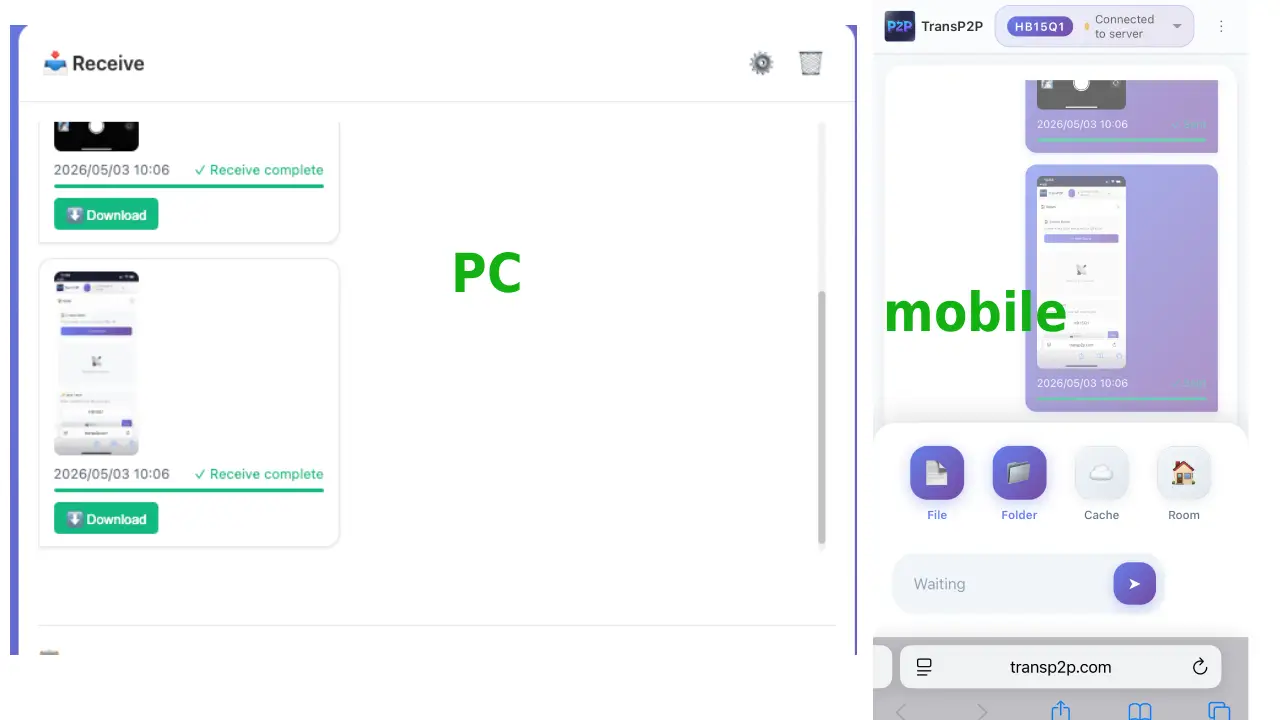
This is where a browser-based P2P approach changes things. TransP2P lets you transfer files directly between any phone and any computer — through the browser. No USB cable, no software install, no cloud upload.
How It Works
TransP2P uses WebRTC, the same protocol that powers video calls in browsers. Once the connection is established, files transfer directly from one device to the other. The server only helps the two devices find each other — the actual file data never passes through a middleman.
Step-by-Step
- On your phone and computer, open transp2p.com in any browser (Safari, Chrome, Firefox, Edge — all work).
- On one device, click "Create Room." A 6-digit code and a QR code appear.
- On the other device, enter the 6-digit code or scan the QR code.
- Connected. Both devices can now send files to each other — like a chat window, but for files.
- Send files. Select photos, videos, documents, anything. The other device receives them immediately.
That's it. Four steps, no lasting setup, works between any combination of devices.
Why This Works Particularly Well for Cross-Platform Headaches
Remember those pain points from earlier?
| Pain Point | TransP2P Answer |
|---|---|
| iPhone → Windows PC (iTunes hell) | Both open the browser. No iTunes. |
| Android → Mac (MTP doesn't work) | Both open the browser. No MTP. |
| iPhone → Linux (zero Apple support) | Both open the browser. Linux Firefox/Chrome works. |
| Can't install software on work computer | No install needed. Browser only. |
| Wrong cable / no cable | No cable needed. Works over any network. |
Speed
On a local Wi-Fi network, TransP2P transfers files directly between devices. There's no cloud upload step, no server to wait on. The speed depends on your router and Wi-Fi standard — on modern Wi-Fi 5 or 6, transfer speeds are fast, comparable to what you'd get with a cable.
- Same Wi-Fi network: Very fast. Photos are instant. A 1GB video transfers in seconds.
- Different networks (remote): Speed depends on both connections, but there's still no upload-then-download delay. The transfer starts immediately.
The one scenario where TransP2P doesn't work: no internet connection at all. You need to be online to open the web page and establish the initial connection. If you have any internet access — even slow coffee shop Wi-Fi — it works.
Privacy
Files transfer directly between your phone and computer. They don't touch a server. There's no temporary storage, no cloud account, no "file sitting on someone else's computer." For sensitive documents or personal photos, this is more private than uploading to Google Drive or emailing to yourself.
File Sizes and Types
No hard file size limit. No file type restrictions. You can send:
- A high-resolution photo album (instant on local Wi-Fi)
- A 4K video that's several gigabytes
- A folder of work documents
- All in one session, in either direction
If the connection drops during a large transfer, TransP2P supports resumable transfers — you pick up where you left off rather than starting over.
Quick Comparison
USB Cable
- Works for: iPhone→Windows (with iTunes), Android→Windows (MTP), Android→Mac (with Android File Transfer)
- Problems: Wrong cable type, missing drivers, iTunes on Windows, MTP on Mac is unreliable
- Best for: Planned transfers when you have the right cable
Cloud Storage (Google Drive, iCloud, Dropbox)
- Works for: Any device with an account
- Problems: Slow upload, storage limits, requires accounts
- Best for: Files you want accessible everywhere
Email / Messaging
- Works for: Tiny files
- Problems: 25MB limit, image compression
- Best for: A screenshot or single document
Bluetooth
- Works for: Any Bluetooth-capable device
- Problems: Extremely slow, unreliable pairing
- Best for: Emergency only
Third-Party Apps (AirDroid, Send Anywhere, etc.)
- Works for: Frequent transfers between your own devices
- Problems: Install required on both sides, free tier limits
- Best for: Regular use between known devices
TransP2P (Browser P2P)
- Works for: iPhone↔Windows, Android↔Mac, iPhone↔Linux, any cross-platform combination
- Problems: Requires internet connection to initiate
- Best for: Quick transfers, one-off sends, any scenario where you can't or don't want to install software
Common Questions
Do I need to install anything on my computer? No. TransP2P runs entirely in the browser. Any modern browser works — Chrome, Firefox, Safari, Edge.
Does it matter what operating system I'm using? No. TransP2P works between any combination: iPhone to Windows, Android to Mac, Android to Linux, you name it. The browser is the only requirement.
Is it fast enough for large video files? Yes. On local Wi-Fi, transfer speeds are comparable to a USB cable. A 1GB file transfers in seconds.
Does the other person need to create an account? There are no accounts. No one needs to sign up for anything.
What if I'm not on the same Wi-Fi as my computer? Works fine. The connection goes over the internet. Speed depends on both connections, but there's no "upload to server first" delay.
Is it safe for sensitive files? Files transfer directly between devices — they don't pass through a server. For sensitive documents or personal media, this is more private than cloud-based methods.
The Bottom Line
There are a dozen ways to move files between a phone and computer. Most of them work — under the right conditions. The right cable, the right drivers, the right software installed, the right cloud account logged in.
The simplest way is the one that doesn't ask for any of that.
Next time you need to move photos, videos, or documents between your phone and computer, try the browser-based transfer tool. Open transp2p.com on both devices. Enter the code. Drag and drop your files.
No cable hunt. No software install. No account setup. No waiting for uploads.
Just the file, from phone to computer.
TransP2P is a browser-based P2P file transfer tool built on WebRTC. Files transfer directly between devices — no server storage, no registration, no file size limits. Works on all modern browsers.
Related Articles
- Introduction to TransP2P - Learn about the core technology behind browser-based P2P file transfer
- Complete Tutorial - Step-by-step guide to using TransP2P for all your file transfer needs
- How to Transfer Files Between iPhone and Android - Our guide to cross-phone transfers
- File Transfer Showdown: 6 Best Methods Compared - Compare TransP2P with other transfer methods