
Master Cross-Device File Transfer in 3 Minutes
Transferring files between devices shouldn't be complicated. With TransP2P, you can move files from your phone to computer, computer to phone, or between any devices in just a few simple steps.
This complete tutorial will guide you through the entire process.
📋 Before You Start
First, let's make sure you're ready:
- Ensure both devices are connected to the same network (WiFi) or have internet access
- Open a modern browser on both devices (Chrome, Edge, Firefox recommended)
- Visit TransP2P on both devices
- No registration required - just open and use!
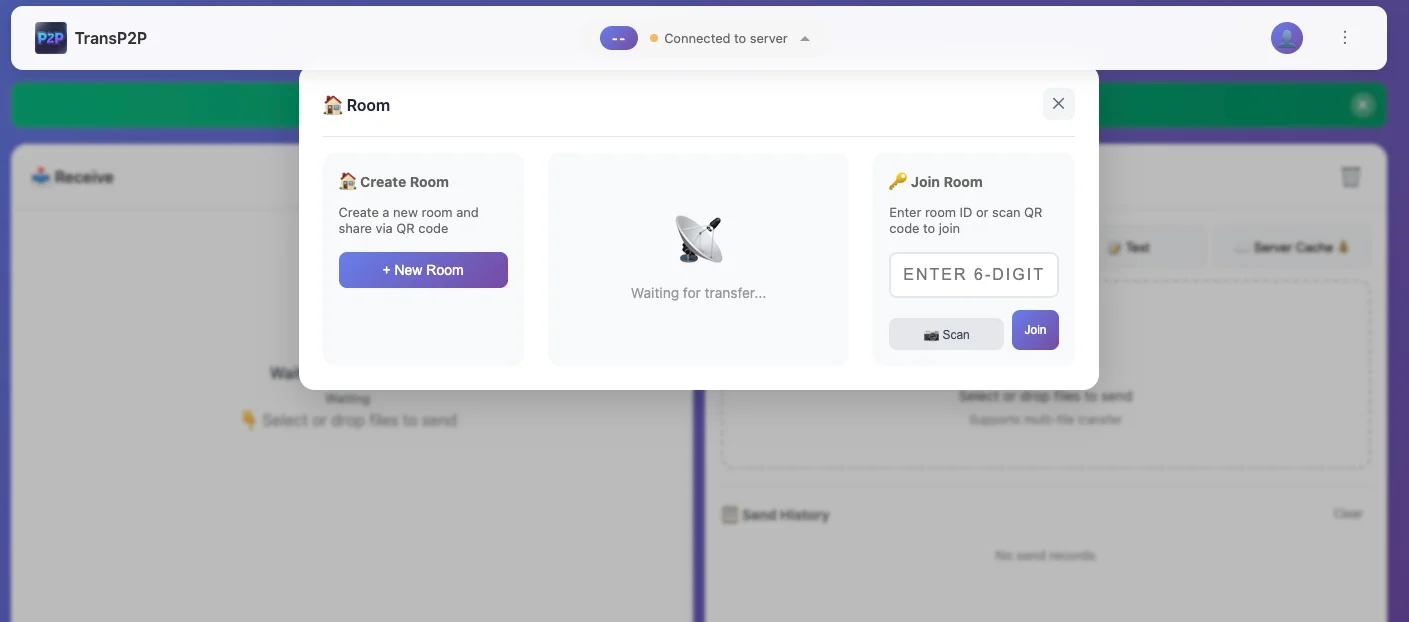 TransP2P main interface showing room code and QR code
📱 Option 1: Phone to Computer
Transfer photos, videos, or files from your mobile device to your computer.
Step 1: Prepare your computer
- Open TransP2P in your computer's browser
- You'll see a connection code or QR code on the screen
- Keep this window open
Step 2: Connect your phone
- Open TransP2P in your phone's browser
- Tap "Join Room" or "Connect"
- Either:
- Scan the QR code displayed on your computer
- Or enter the room code manually
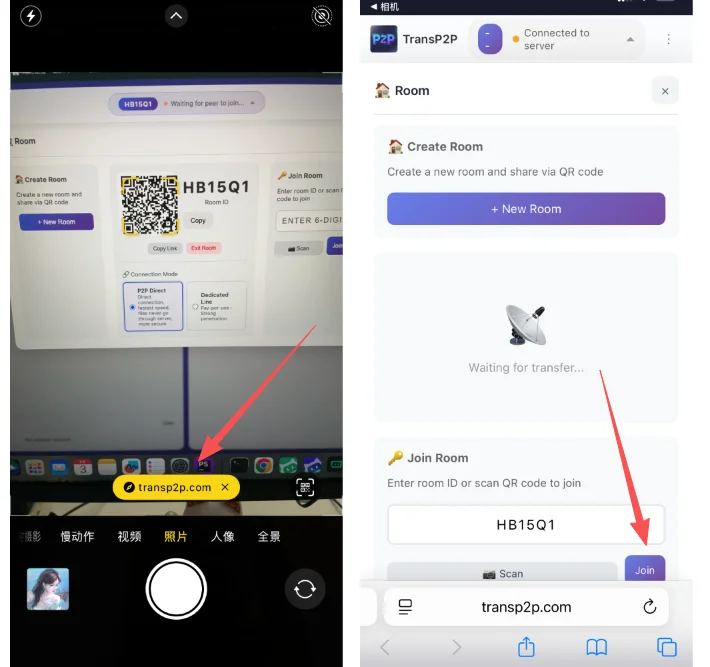 Scanning QR code to connect phone and computer
Step 3: Select and send files
- On your phone, tap "Select Files"
- Choose the files you want to transfer (photos, videos, documents)
- Tap "Send"
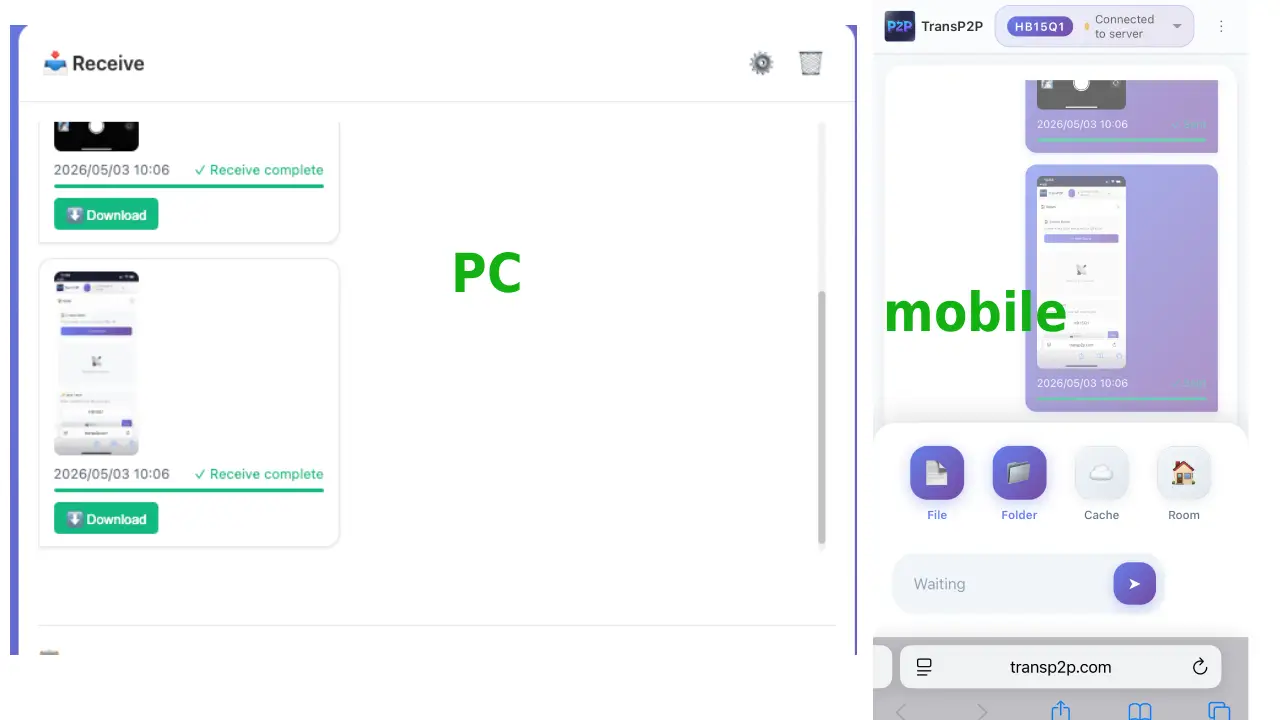 Selecting photos and videos on mobile device
Step 4: Receive on computer
- On your computer, you'll see the incoming file(s)
- Click "Accept" to save the files
- Choose where to save them on your computer
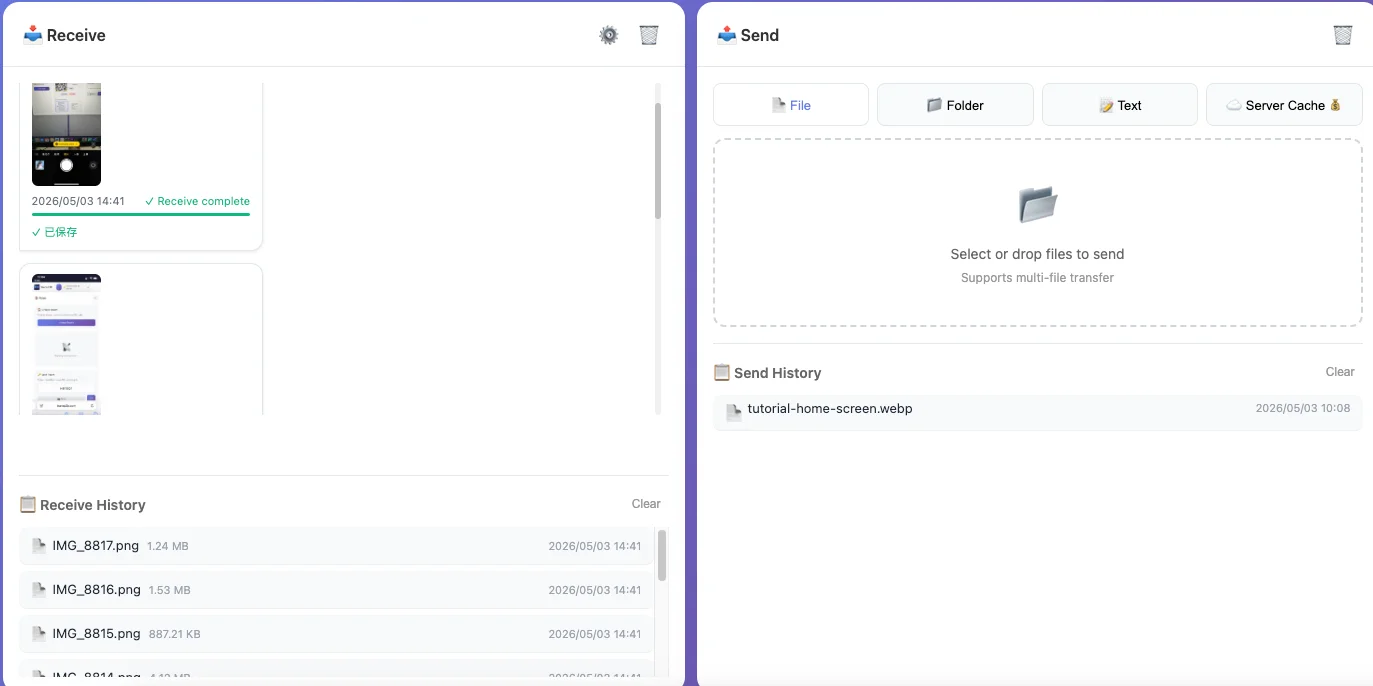 Real-time file transfer progress display
💻 Option 2: Computer to Phone
Send files from your computer to your mobile device.
Step 1: Prepare your phone
- Open TransP2P in your phone's browser
- Note the connection code or QR code displayed
Step 2: Connect your computer
- Open TransP2P in your computer's browser
- Click "Join Room" or "Connect"
- Either:
- Scan the QR code displayed on your phone
- Or enter the room code manually
Step 3: Select and send files
- On your computer, click "Select Files"
- Choose the files you want to transfer
- Click "Send"
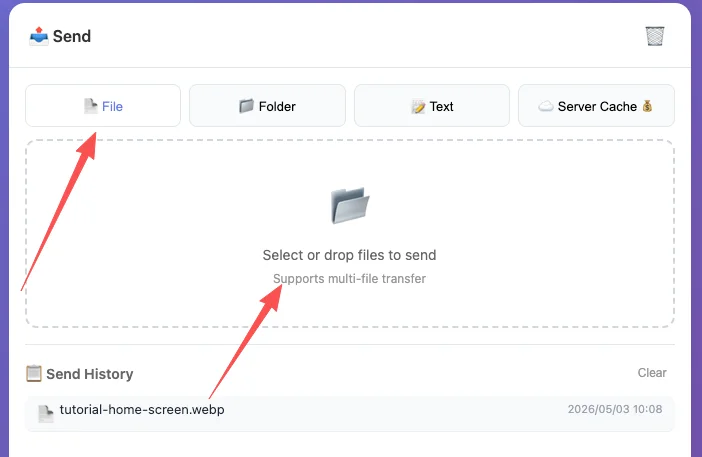 Selecting large files on desktop interface
Step 4: Receive on phone
- On your phone, you'll see the incoming file(s)
- Tap "Accept" to save the files
- Files will be saved to your phone's downloads folder
📁 Option 3: Multiple Files at Once
Transfer multiple files or even folders in one go.
Batch Selection
- Hold Ctrl (Windows) or Command (Mac) to select multiple files
- Or select entire folders for transfer
- All selected files will transfer simultaneously
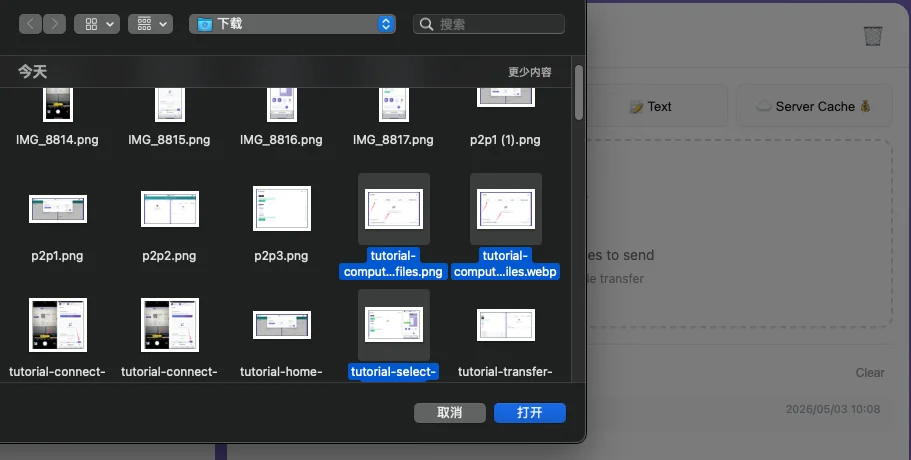 Transfer queue showing multiple files at once
Transfer Queue
- View progress of each file in real-time
- Pause/resume individual transfers
- Skip files if needed
💡 Pro Tips for Better Transfers
Speed Up Your Transfers
- Use WiFi - Transfer speed is significantly faster on local networks
- Keep devices close - Better signal means better connection
- Close background apps - Free up bandwidth for faster transfers
Avoid Common Issues
- Keep screen awake - Some devices disconnect when screen turns off
- Check firewall settings - Ensure your firewall allows WebRTC connections
- Try different browsers - If connection fails, try Chrome or Edge
Optimize for Large Files
- Enable resume transfer - Automatically resumes if connection drops
- Use wired connection - For very large files, consider Ethernet for stability
- Check storage space - Ensure destination has enough space before transferring
⚙️ Advanced Features
Create a Room for Multiple Devices
- On any device, click "Create Room"
- Share the room code with others
- Multiple devices can join and share files simultaneously
- Perfect for team collaborations or group file sharing
Server Cache Mode (Offline Transfer)
- Enable "Server Cache" in settings
- Upload files to temporary server storage
- Generate a download link
- Share link with anyone - they can download at any time
- Great when recipient is offline or far away
Auto-Download Settings
- Auto-accept mode: Automatically saves incoming files
- Manual confirmation: Require user confirmation before saving
- Save location: Choose default download folder
❓ Frequently Asked Questions
Q: Why won't my devices connect?
A: Ensure both devices are on the same network or have internet access. Try refreshing both browsers or restarting your router.
Q: What's the maximum file size?
A: There's no theoretical limit. TransP2P supports resume transfer for large files (10GB+).
Q: Is my data secure?
A: Yes! Files transfer directly between devices using end-to-end encryption. Servers don't store or access your files.
Q: Can I transfer between different operating systems?
A: Absolutely! TransP2P works between Windows, Mac, Linux, iOS, and Android.
Q: What if the transfer gets interrupted?
A: If you enabled resume transfer, the transfer will automatically resume from where it left off.
Q: Do I need to install anything?
A: No! TransP2P is browser-based - just open the website and start transferring.
🎯 Quick Reference Summary
| Action | From Phone | From Computer |
|---|---|---|
| Connect | Scan QR code or enter room code | Scan QR code or enter room code |
| Send Files | Tap "Select Files" → Choose → Tap "Send" | Click "Select Files" → Choose → Click "Send" |
| Receive Files | Tap "Accept" to save | Click "Accept" to save |
| Multiple Files | Tap and hold to select multiple | Ctrl+Click (Windows) or Cmd+Click (Mac) |
Ready to try it out? Open TransP2P on your devices and start transferring files in seconds!
More Resources
- TransP2P vs Other Solutions - See how we compare to AirDrop, WeTransfer, and more
- File Transfer Privacy Risks - Hidden dangers of cloud and messaging apps
- Scenarios Guide - Best practices for every use case